How to sell tickets for your choir concert online (the complete guide)
Ticketing page, payments and check-in at the door. The Centr’Art case study, and a tutorial to set up your ticketing in 15 minutes.
Quick answer: to sell tickets for a choir concert online, you need three things: a ticketing page, a payment processor, and a way to check people in at the door. With the Artist Center platform, you create your event, set your ticket types and prices, share the link to your ticketing page and scan tickets at the door with a phone, all from the tool you already use to manage your choir. Setup takes about 15 minutes, and Artist Center takes no fees: you pay only Stripe’s fees.
Why is online ticketing harder than it should be for choirs?
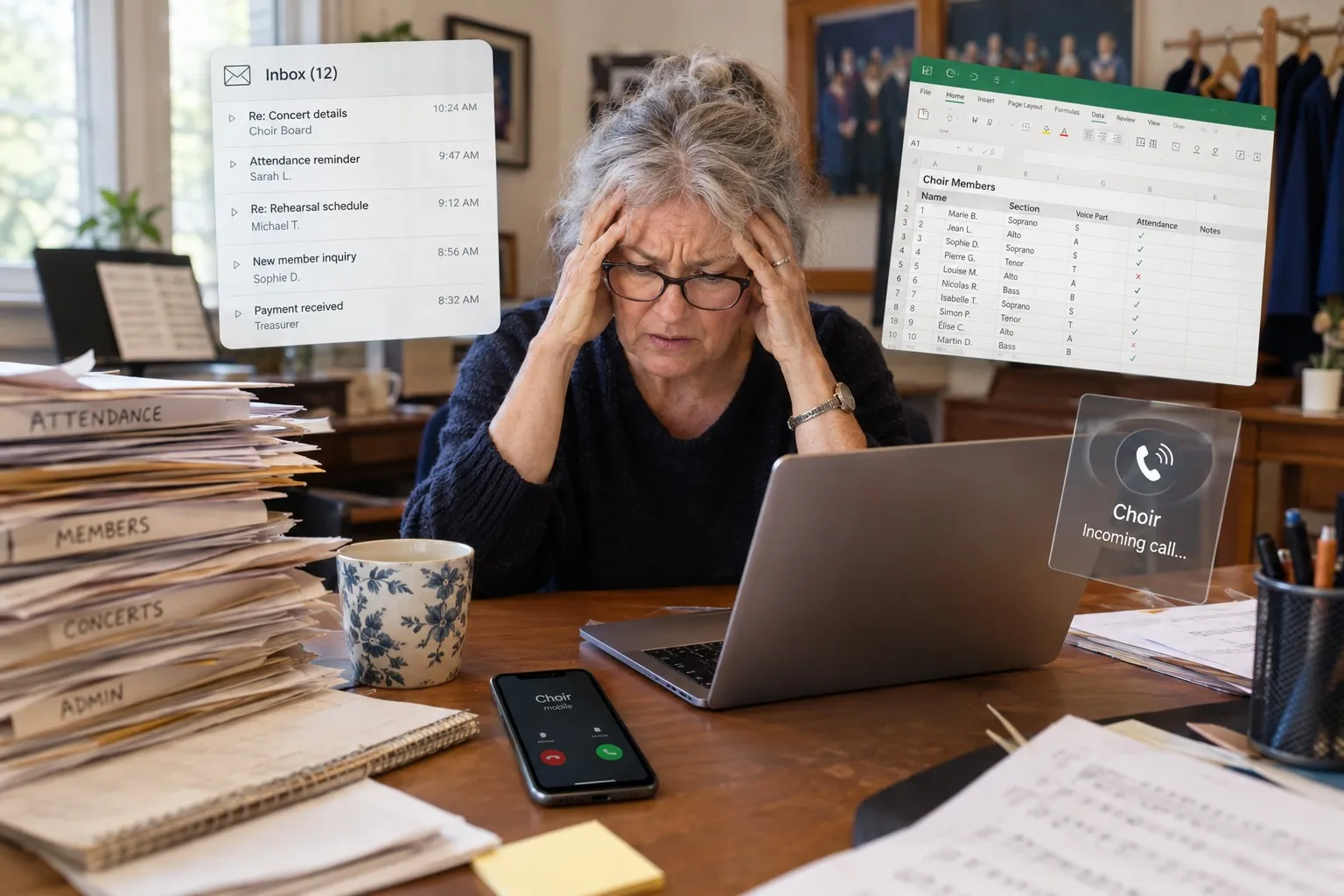
Most choirs still sell their tickets for cash, with an Excel file of reservations, hundreds of confirmation emails, and a folding table with a long line on concert night.
Marc-Antoine d’Aragon lived these common problems when he managed the Chœur de la Montagne as artistic director. He juggled many tools until he had enough and decided to build, on Artist Center, an online ticketing system that is 100% from Quebec and designed specifically to make life easier for choirs.
This guide shows how the non-profit Centr’Art moved its season ticketing online, the exact setup steps you can repeat, and the answers to the questions choirs ask us most often.
Case study: how Centr’Art sold thousands of dollars online for its Christmas concerts
The context: Centr’Art is a non-profit organization and the parent company of Artist.Center. Centr’Art provides show production services, as well as management of artists and arts organizations in Quebec.
The problem: until 2025, ticketing at Centr’Art was a logistical nightmare:
- cash or Interac e-Transfers;
- reservations by email;
- an Excel file with macros and complicated formulas;
- reconciliation problems and manual refunds;
- errors in reserved seats;
- many tools: WordPress, Mailchimp, Excel files, emails and printed Word files.
In short, dozens of hours lost each season, before, during and after the concert, on management and finances. Many choirs still work this way today.
What they did: they set up their event on Artist Center in one evening:
- separate ticket types (adult, student/senior, free for children under 12);
- several performances (at different times) for each concert;
- automatic confirmation emails;
- donations collected directly in the ticket form;
- ticket scanning at the door, by two volunteers with their phones.
The result: thousands of tickets sold online, automatically. A smooth, fast line at the door. And 50% less reconciliation time for the treasurer, because each payment was already linked to a buyer and easy to download from the Artist Center platform as a CSV file.
“After trying Artist Center ticketing, I really can’t believe how much time and energy we lost selling tickets for our concerts. Now we can manage our concerts better, with fewer people, and give our audience a better experience.” — Marc-Antoine d’Aragon
Tutorial: set up ticketing for your concert in 15 minutes
Step 1 — Create your Artist Center profile
Go to artist.center and create your account with your email or your Google account. Then create your choir’s profile: it holds your events, your members and your payments.
Step 2 — Connect payments
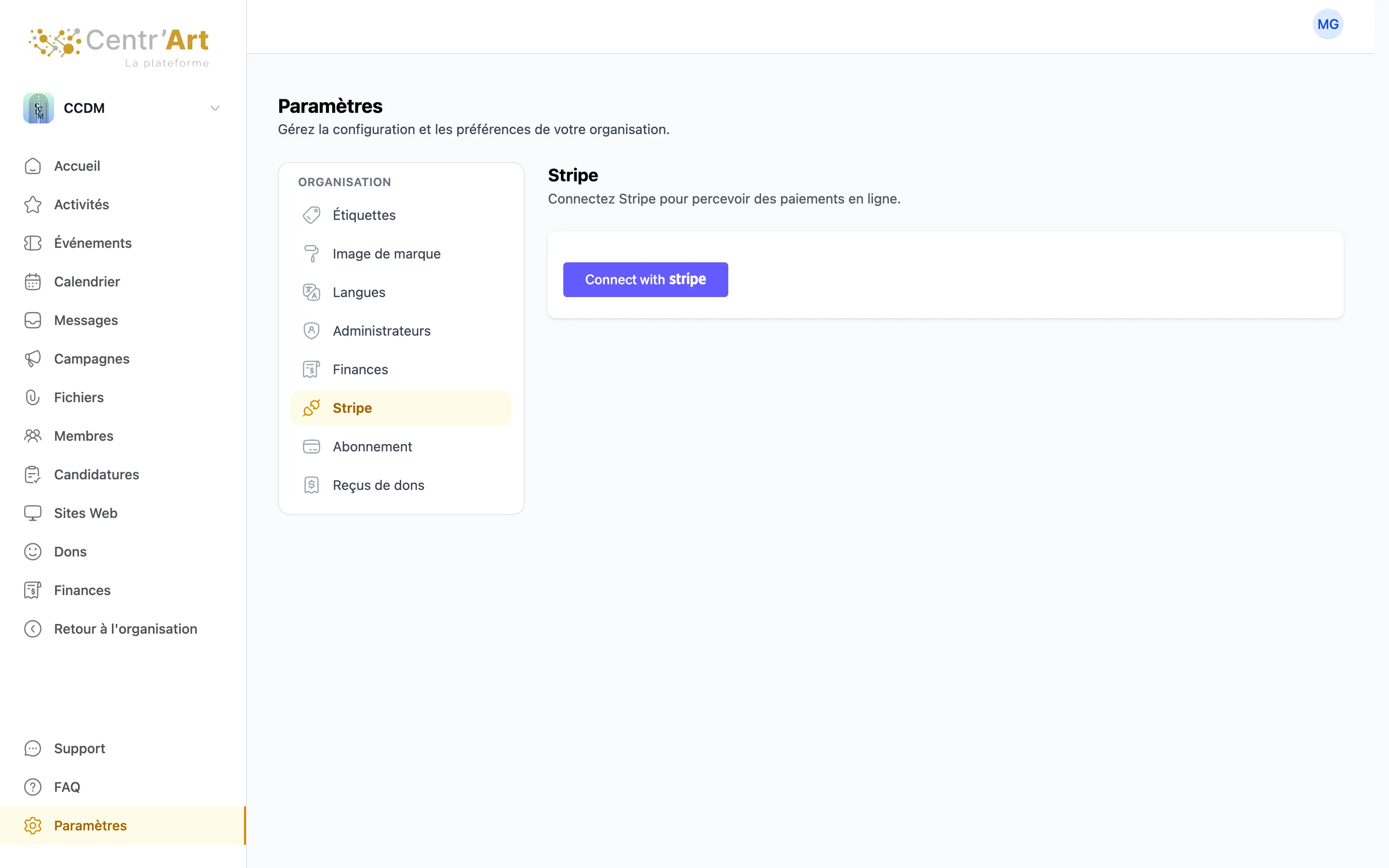
Before you sell your first ticket, connect your choir’s Stripe account. In the menu on the left, go to Settings, then Stripe, and click Connect with Stripe. Stripe asks for some information about your organization and the bank account to pay the money into.
Ticket money goes straight into your Stripe account. Artist Center takes no fees: you pay only Stripe’s fees, 2.9% + 0.30 per transaction, in the currency of the payment.
Step 3 — Create your event
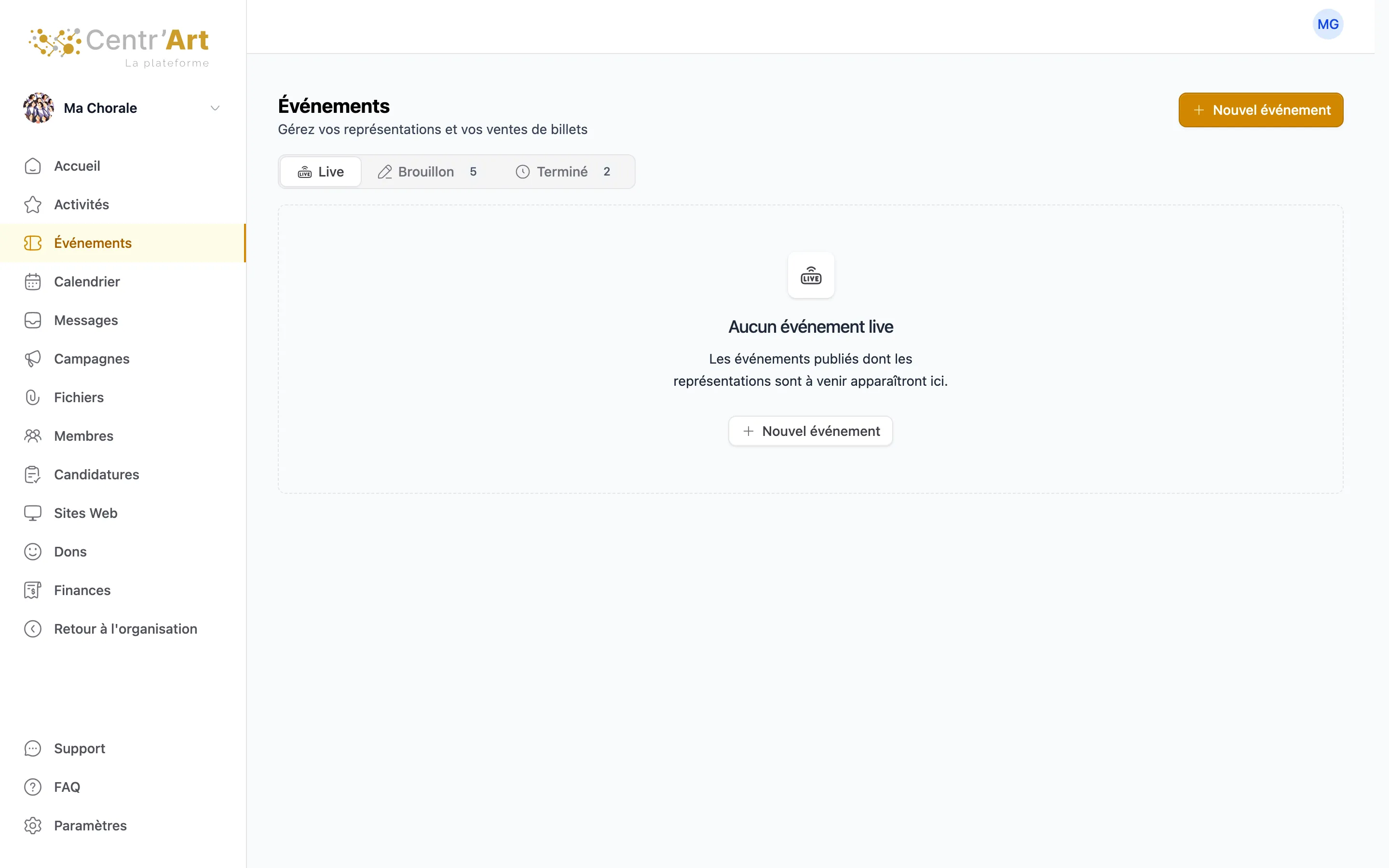
To create your event, go to the menu on the left of the screen and select Events. Click the orange + New event button, at the top right.
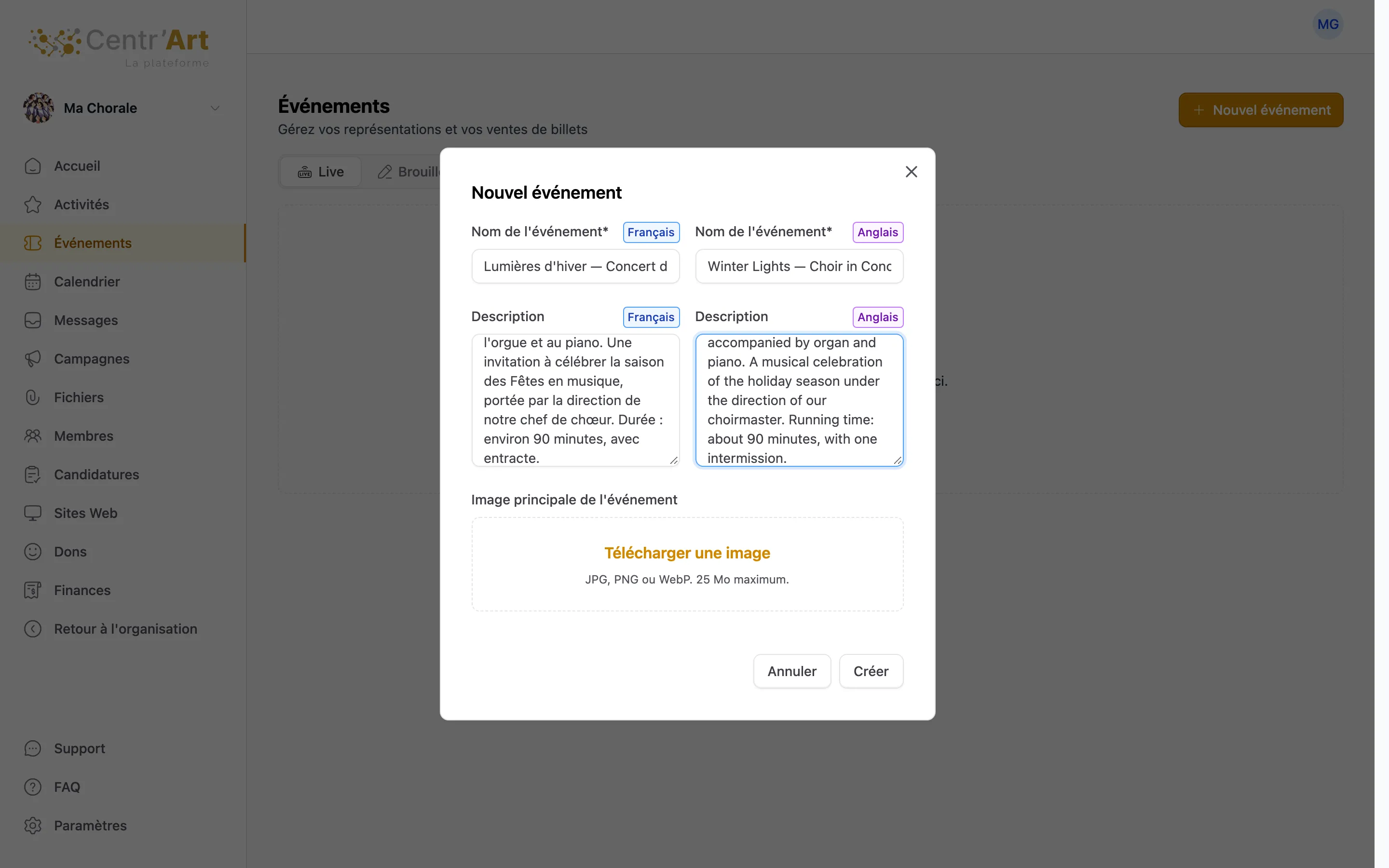
Fill in the name and the description, upload an image, then click Create.
Step 4 — Add a performance
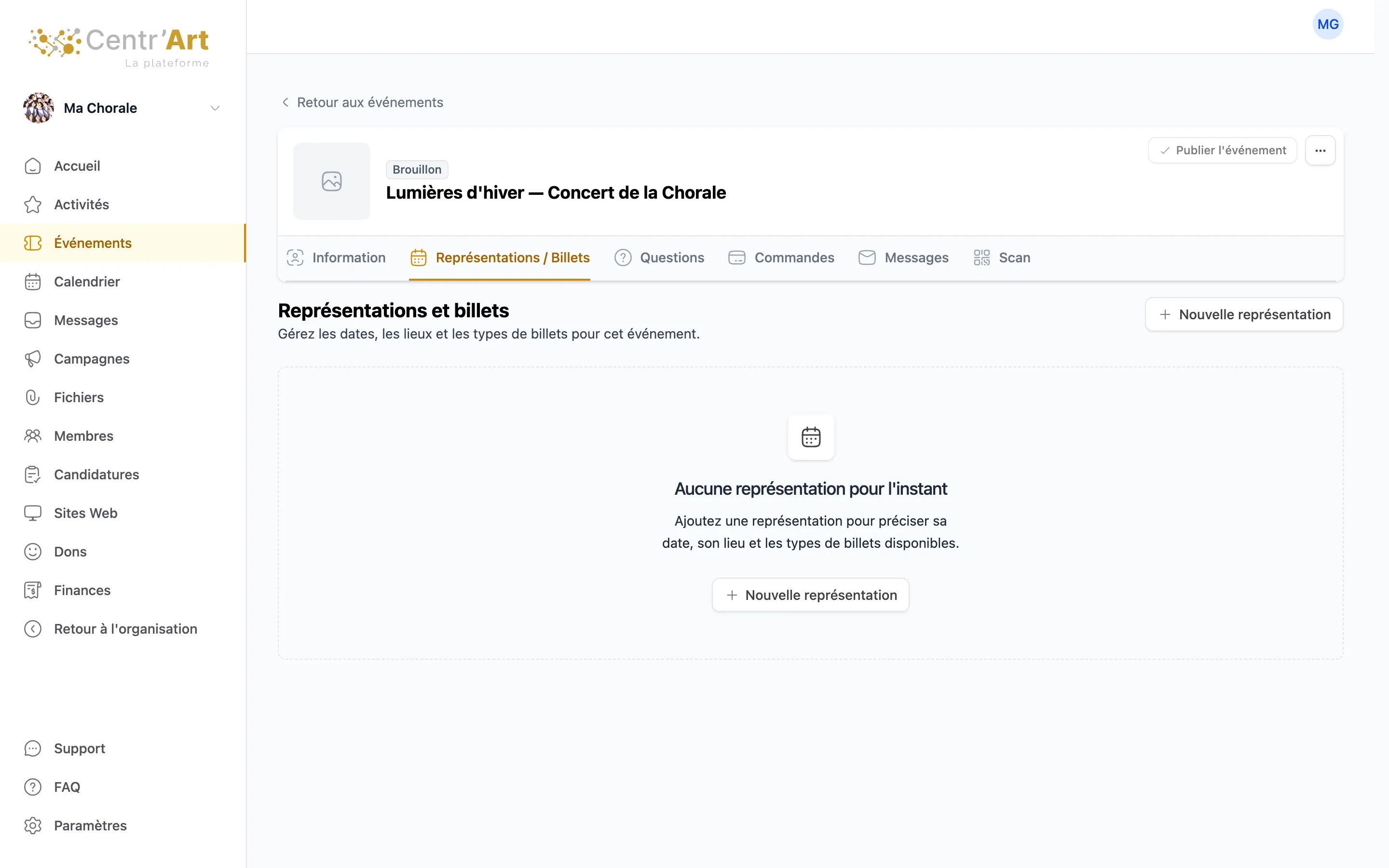
Open the Performances / Tickets tab and click + New performance.
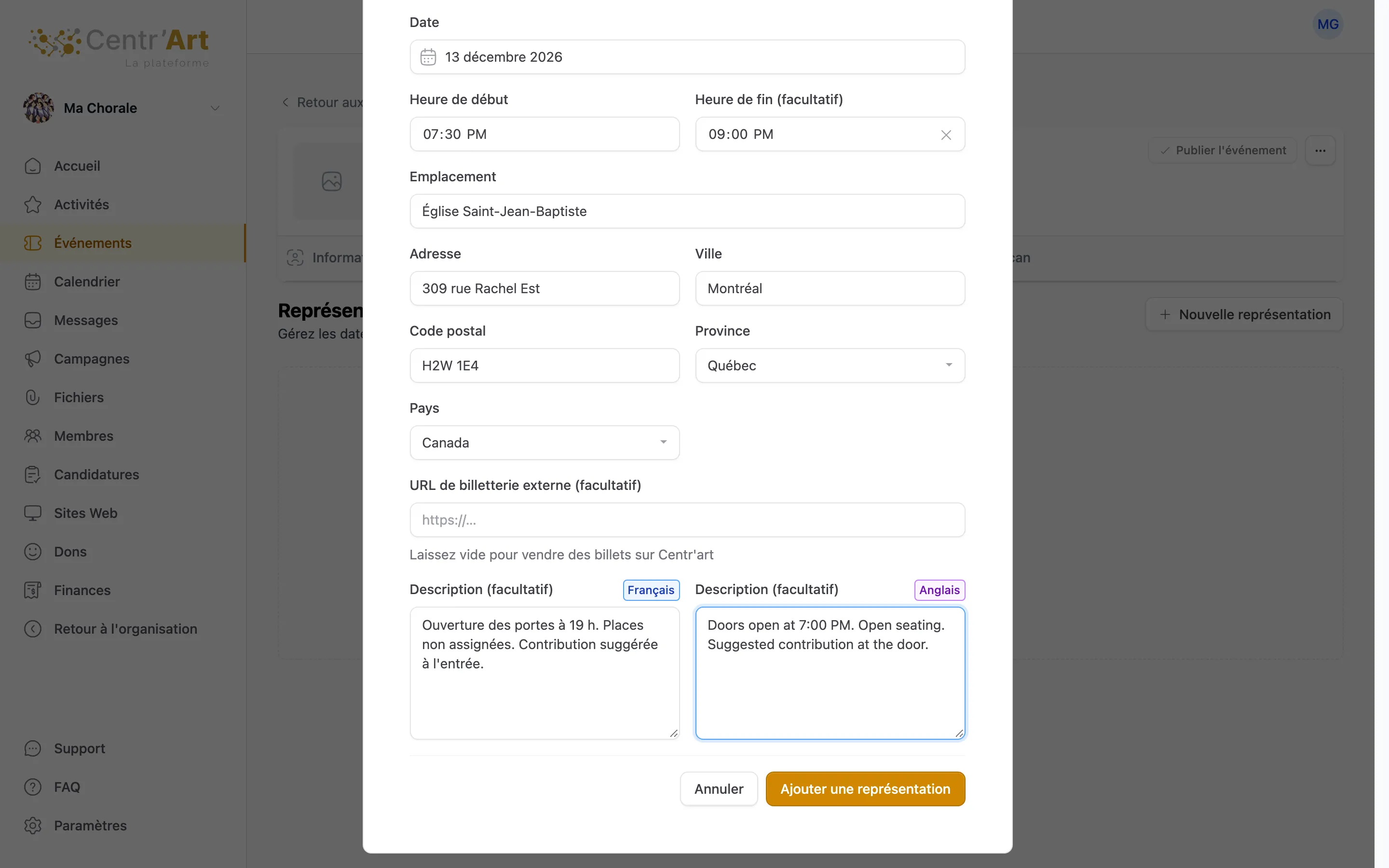
Fill in the date, time and venue of the performance. If your concert runs more than once, add a performance for each one. You can also sell tickets on an external ticketing site: just enter its URL.
Step 5 — Create your tickets
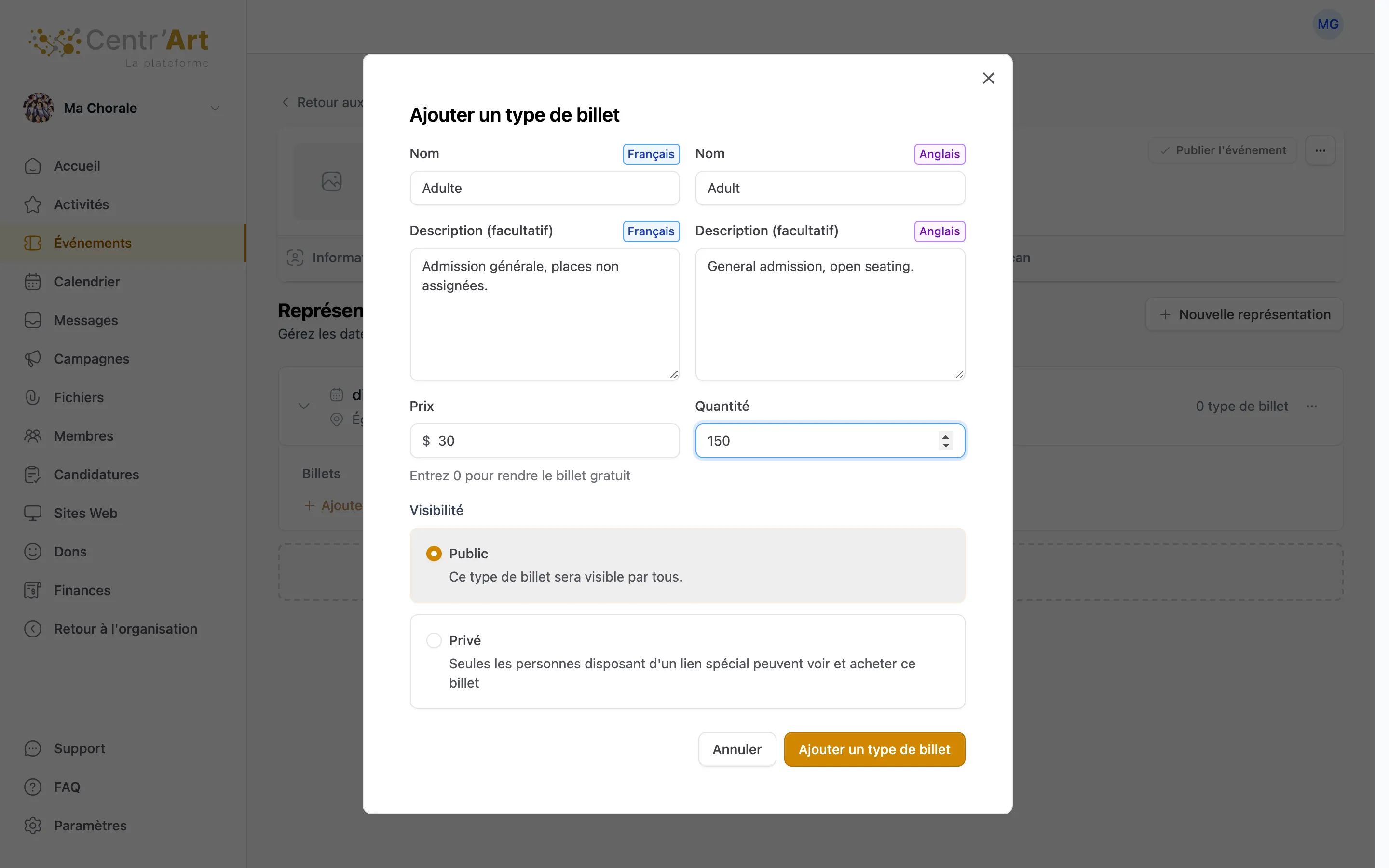
Add tickets by filling in the form: name, price and quantity. You can create private tickets, available only through a special link that you send directly to buyers.
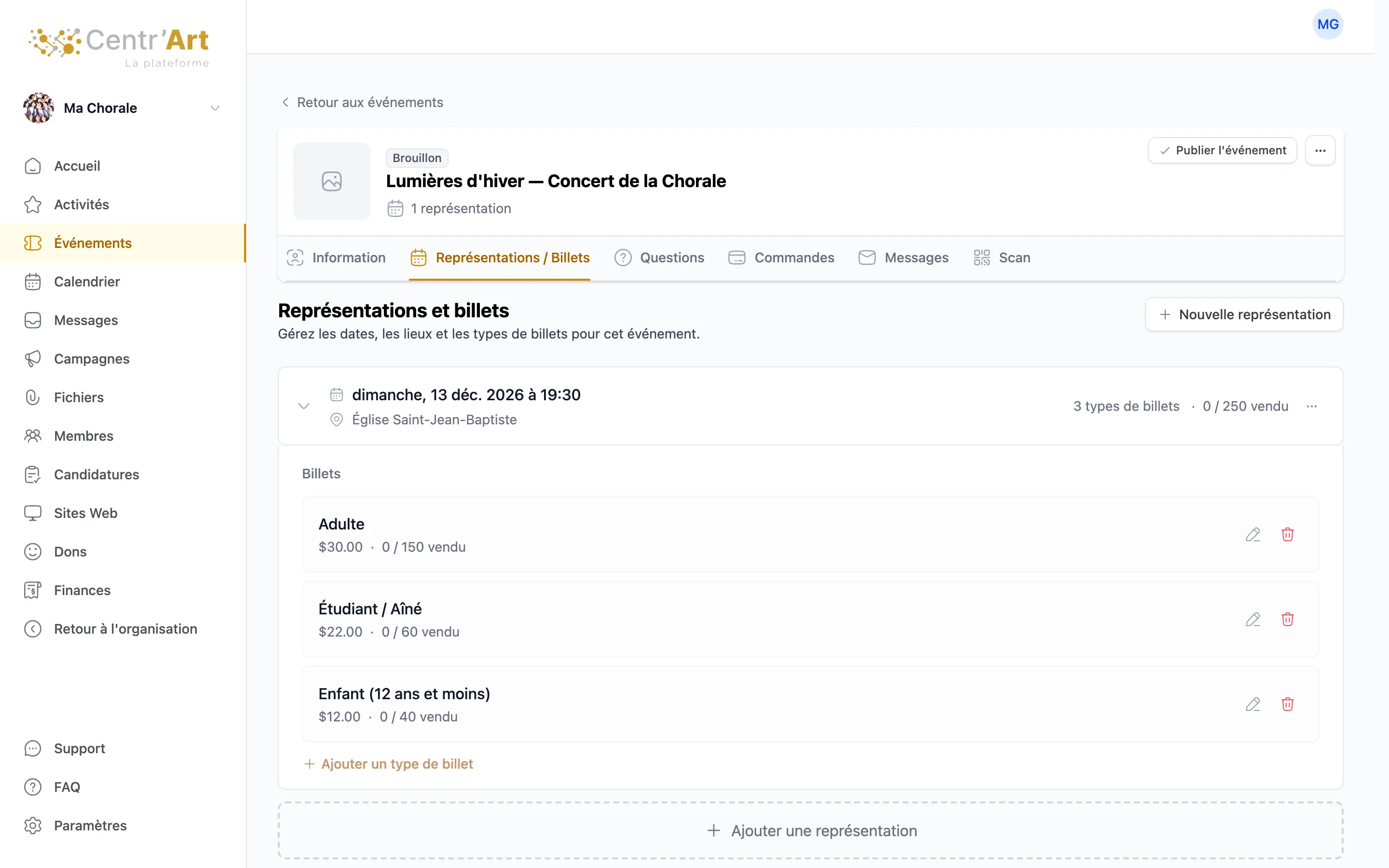
For our example, we created tickets for adults, students/seniors and children.
Step 6 — Add questions (optional)
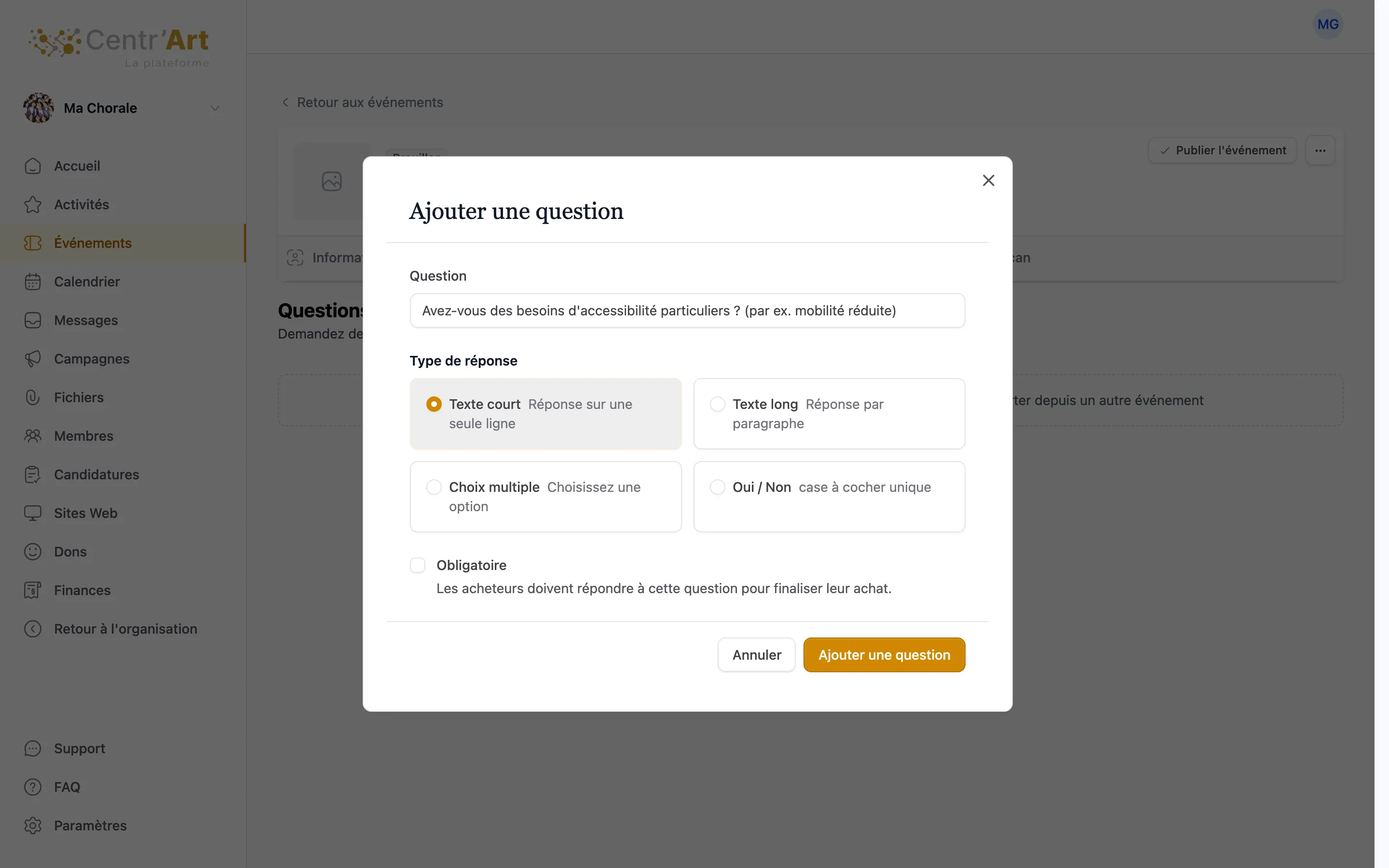
If you want to collect more information about buyers, you can add custom questions. In our example, we added a question about accessibility.
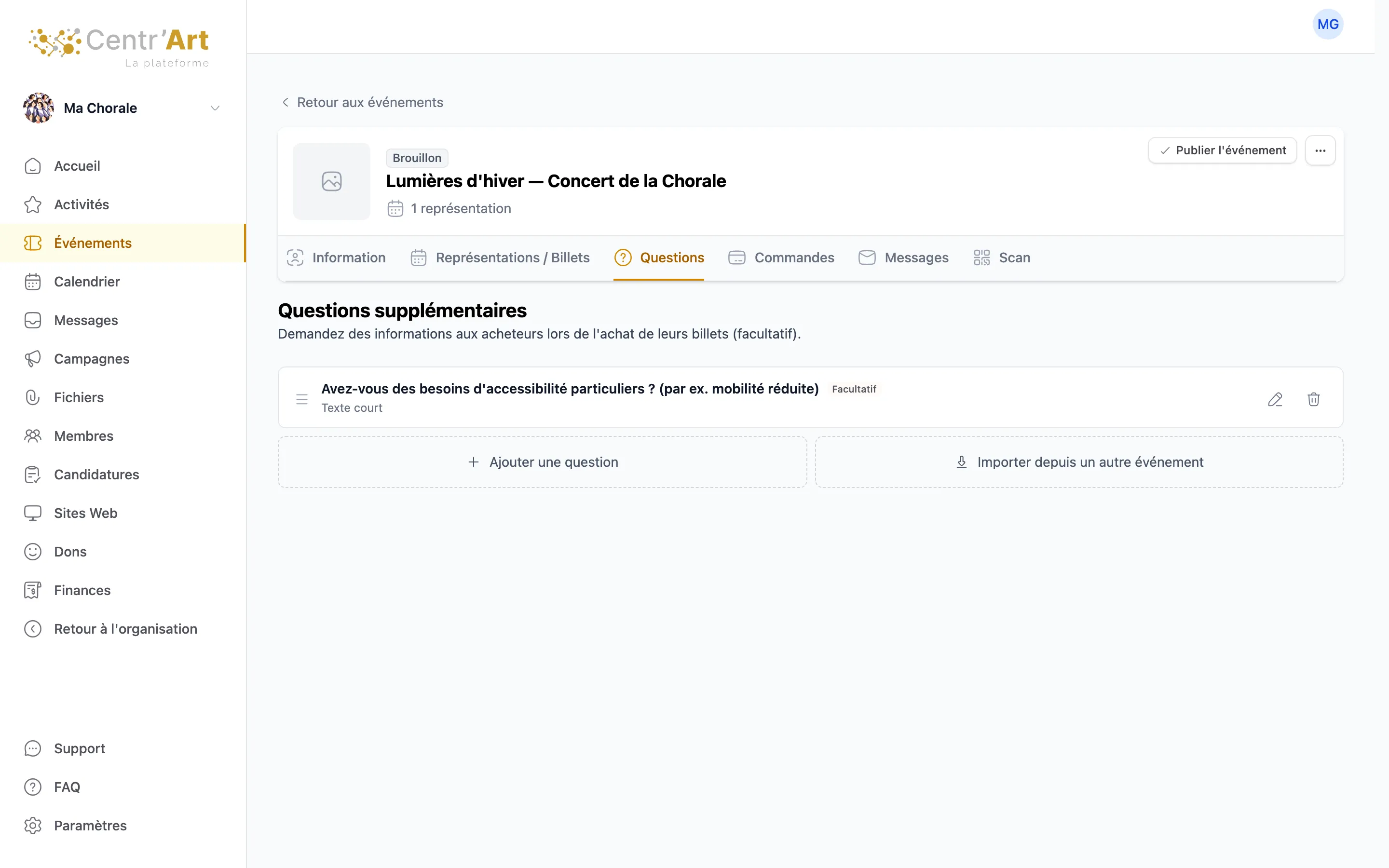
The question appears in the Questions tab. Buyers answer it when they buy their tickets.
Step 7 — Publish your event
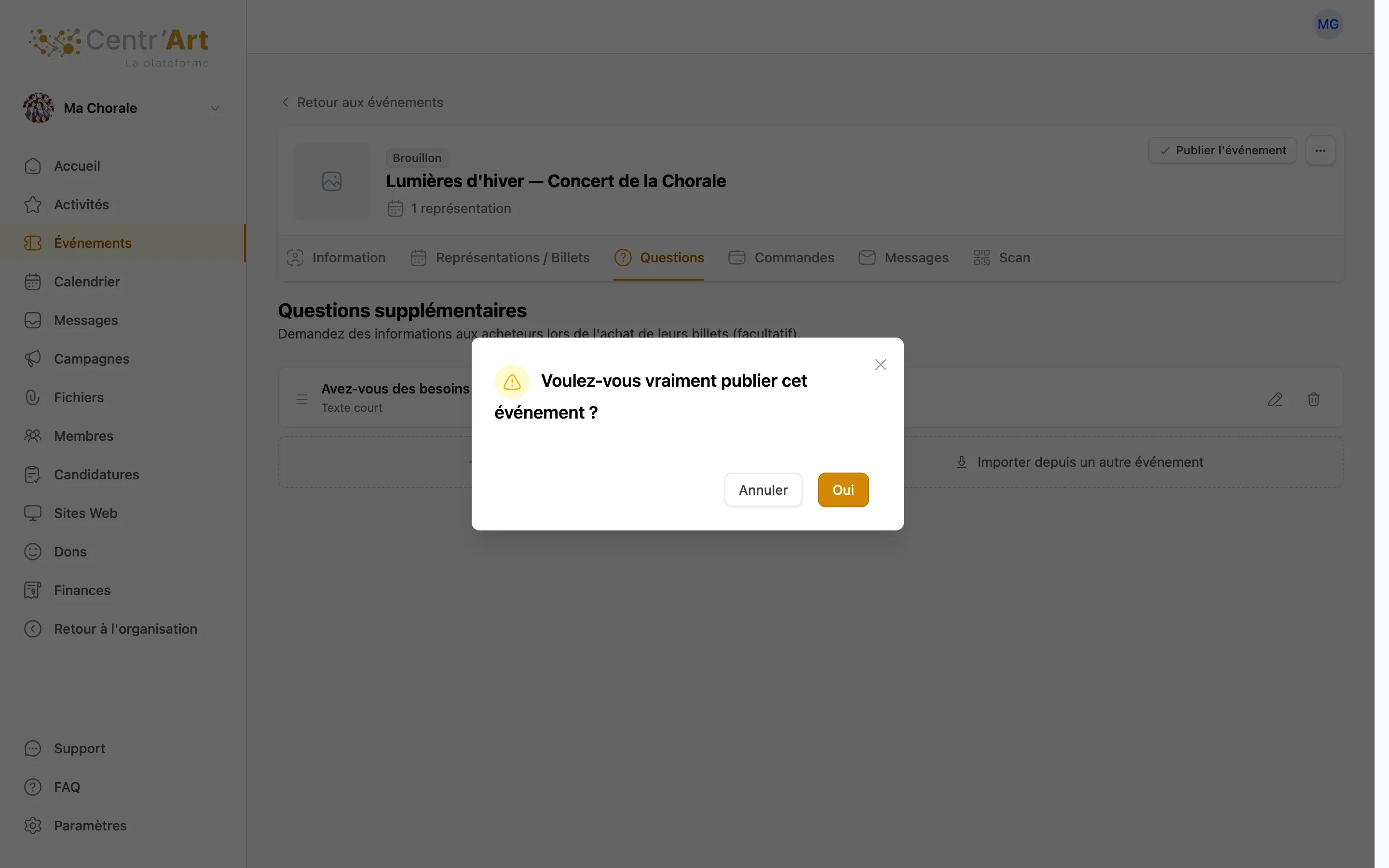
Ready? Click the Publish event button, at the top right, then confirm.
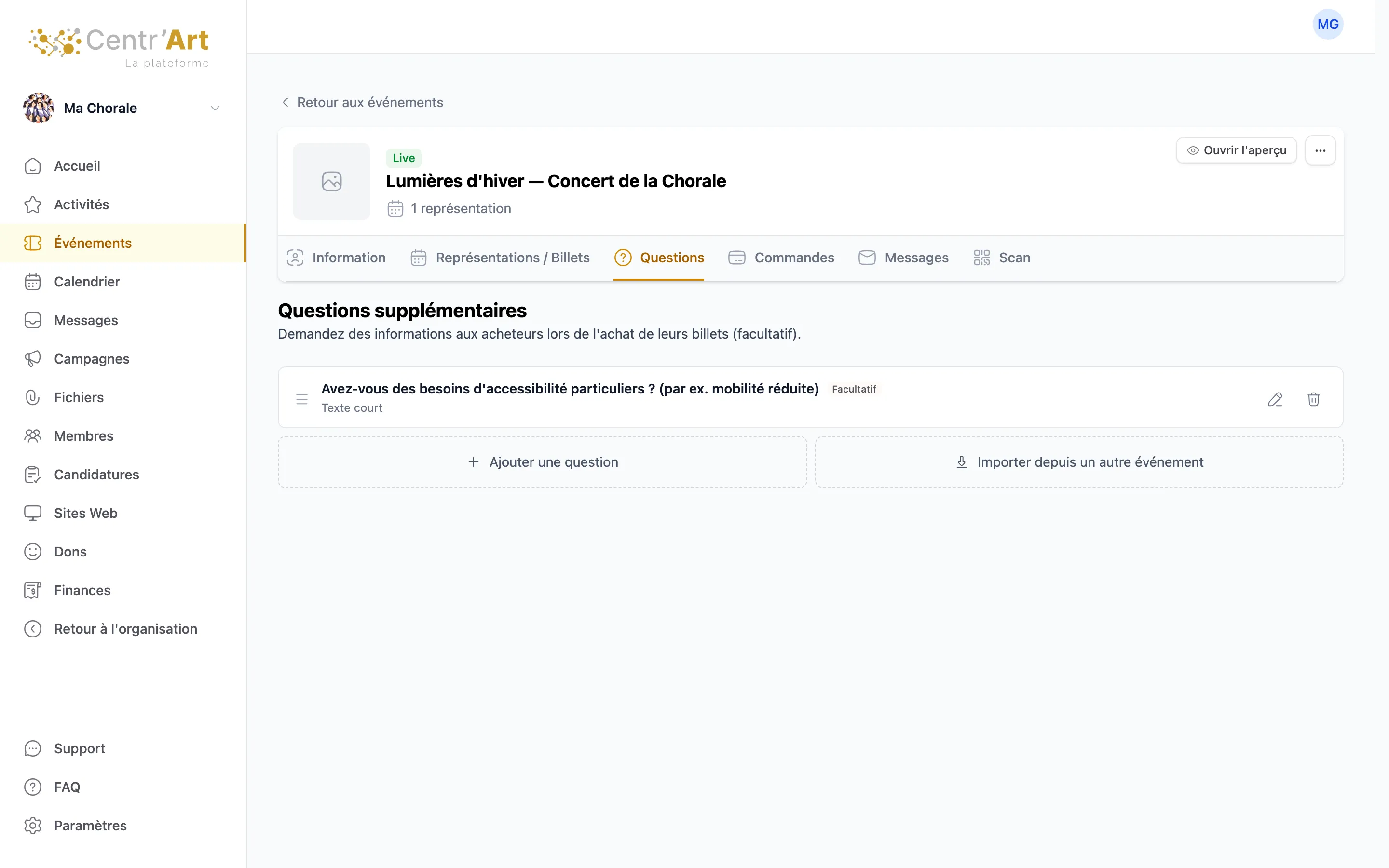
Your event is now Live and tickets are on sale. Click Open preview to see the page as your audience will.
Step 8 — Announce it to your audience

Share the link to the Events tab of your profile with your audience: in your newsletter, on Facebook, in the program of your last concert.

The page also fits phones, where most of your audience will buy their tickets.
Step 9 — Scan tickets at the door
No app or equipment needed. From your event’s Scan tab, send a unique link to each volunteer who will welcome the audience. With that link, the volunteer scans tickets directly with their phone.
Step 10 — Communicate with ticket holders
A change of venue, a reminder the day before, parking information? In your event’s Messages tab, write to all ticket holders, to the holders of one performance, or to one person or a list of people you choose.
Step 11 — Download the financial data for tax reconciliation
Each payment is already linked to a buyer. After the concert, download the list of transactions as a CSV file for your treasurer: reconciliation and tax filing go much faster.
Sell tickets for your next concert in one evening
Your choir should not lose hours on ticketing. Create your event, share the link with your audience and scan tickets at the door, with no platform fees.
Create your first event for free →
Frequently asked questions
Is ticketing free?
Yes, the Artist Center platform charges you no fees. You pay only the standard fees of the payment processor (Stripe): 2.9% + 0.30 per transaction, in the currency of the payment. You can pass them on to buyers or include them in the ticket price.
Do I need an app to scan tickets?
No. You send a unique link to each volunteer, who scans tickets directly with their phone.
Can I sell tickets for several performances of the same concert?
Yes. Add a performance for each date or time, each with its own tickets. You can then write to the holders of one performance only.